 Technical writing in open source
Thanks to Dione Maddern for this excellent interview about LibreOffice
LibreOffice is an open source office suite, including a word processor, spreadsheet, presentation, drawing, database, and other office applications. Most of our readers may be most familiar with LibreOffice Writer for its power and flexibility in technical writing.
We interviewed Dione Maddern to learn more about LibreOffice Writer. Dione recently coordinated the Getting Started Guide, updated for LibreOffice 26.2. Read on to learn more about what it’s like to write with and about LibreOffice.
What’s your role at LibreOffice, and what brought you there?
I’m a technical writer with LibreOffice’s Documentation Team. I’m also the community coordinator for LibreOffice in the United States and Canada. I’m originally from Brisbane, Australia but I moved to the United States about a decade ago. I currently live in Baltimore, Maryland.
Career-wise I’m a bit of a jack of all trades. I originally trained to be a lawyer, but I never went into practice. My background in legal writing and a knack for formatting documents got me into doing document production for an environmental consultancy. I’ve also worked in HSEQ and proposal coordination in the engineering and insurance industries.
Prior to working on LibreOffice, most of my technical writing experience was writing OHS and quality assurance procedures and documentation.
How did you get started working with LibreOffice?
I’m a volunteer with LibreOffice. I’m also a member of The Document Foundation, the not-for-profit that develops LibreOffice.
A few years ago I was downloading the latest version of LibreOffice when I saw this big banner calling for volunteers, and it mentioned that they needed people to work on their documentation. I’d been looking for an opportunity to do some volunteer work and I missed working on big documentation projects. I saw the ad thought it would be a great way to to do both those things, while also giving back to a community that creates this wonderful free software that I use. So I clicked on the link and offered my services. The next thing I knew I was in Budapest giving a talk on project management.
When I joined, I assumed that I was going to be the newbie working with all these super-experienced software documentation pros, but we actually have quite a mix of people from different backgrounds and levels of experience.
You recently worked on the Getting Started Guide, updated for LibreOffice 26.2. What other LibreOffice projects have you been part of?
I’ve worked on a number of other LibreOffice guides. Earlier this year I coordinated the Writer Guide, and I’ve worked on previous editions of the Getting Started Guide, and Calc Guide.
When I started out volunteering with LibreOffice, I mostly worked on the help pages. That was really fun, but a huge learning curve. Our help application is XML-based, and while we do have a WYSIWYG editor and a library of code snippets that help out with the custom tags, there is a lot of manual coding involved. I’d never used XML before, although I did have some experience with HTML and CSS. I had also never used Git, compiled an application from source, or submitted a software patch before.
I’ve also gotten to work on some ad hoc projects, like overhauling the way we track tasks for the user guides, and creating some short video tutorials.
How can others help with the LibreOffice documentation?
We’re always looking for volunteers in the Documentation Team. We currently have a small but dedicated team, and more work than we can handle.
You don’t need years of technical writing experience to volunteer. In fact it’s common for people who are at college or have just graduated to join as a way to gain some industry experience and build a portfolio. What we do ask is that volunteers have a solid understanding of LibreOffice and its features, so that they can make meaningful contributions to our documentation.
We try to focus on making our documentation, and therefore LibreOffice more accessible to users, rather than pedantic adherence to a style guide or standard. That means documenting new features and coming up with better ways to explain concepts.
I think the most useful attributes you can bring with you are a willingness to learn, the ability to put yourself in the user’s shoes, and the ability to work in a team.
If you are interested in volunteering, the best way to get involved is to click the Join our community button on the LibreOffice website and follow the instructions there, or just drop us a line in the Documentation Forums and introduce yourself.
From there, our Documentation Coordinator will get in touch to help you get set up in the system and invite you to the weekly Documentation Team meeting, where you can get to know the rest of the team.
We also have a community chat on Matrix and Discord where you are welcome to drop in and chat or ask questions without committing to anything.
What’s a typical “first contribution” someone might make?
People typically begin by working on the user guides. You don’t have to start with the guides, but those are generally the most accessible to new volunteers, because we produce them in LibreOffice Writer.
How that usually looks is that once we’ve on-boarded a new volunteer, they pick a chapter of one of the guides to update. That might be a chapter on a topic that specifically interests them, or just something they feel comfortable working on.
Another great way to dip your toes into volunteering with the Documentation Team is to review a chapter that somebody else has updated.
What’s one really cool feature in LibreOffice that you wish more people knew about?
The master documents feature is definitely my favorite lesser-known feature. It makes compiling long documents so much easier, especially when you have multiple people working on different chapters. Back in my bid coordinator days, I would often have to pull together big documents with loads of chapters and attachments created by different teams. The only options for doing that were copying and pasting each chapter, or using something like Adobe Acrobat to compile everything into a PDF. I really wish I’d had access to this feature back then.
Another feature that people are probably less familiar with is the Navigator, which lists elements like images, sections and comments in a document. I often use it for finding comments in the guides, or for quickly jumping to screenshots and hyperlinks so I can check and update them.
The Navigator also makes it easy to rearrange segments of the document because you can move headings up and down or promote and demote them in the document structure. Any text under that heading will follow the heading. As somebody who tends to write in a non-linear way, this saves me a lot of time and makes it easy to arrange a document coherently.
What are some of the “power features” in LibreOffice that help you write?
I think working on the LibreOffice user guides shows off how powerful LibreOffice’s collaboration features are. People often think of collaboration in terms of everybody working on the same file at the same time, but throughout my career it has more usually been the case that teamwork means coming up with a common vision for a project, distributing tasks to team members, and those team members breaking off as individual or in smaller groups to work on their own task while staying in touch with the team. In the case of the LibreOffice Documentation Team, we have people scattered across multiple continents and time zones all working on different tasks.
I can use the comments feature in LibreOffice Writer to leave comments for a colleague in Poland or Australia to read when they look at the document. We can use comment threads to have an entire discussion, then mark it “resolved” when we’ve closed out the issue.
LibreOffice also has some quite sophisticated features for marking up documents, and can even merge changes from different documents if necessary. Version 26.2 got some really useful features that help with handling interdependent changes.
The Master Document feature that I mentioned earlier makes it easy to farm chapters out to different team members, then pull everything together into a coherent document at the end with minimal effort.
This all helps us to create a complex, professional, and cohesive user guide, without ever needing to be in the same room.
Do you have a favorite font you like to use?
My current favorite for screen is Work Sans, which I use for my personal website. It’s an open source, sans serif font that is very clean and readable. Plus like me, it was originally developed in Australia.
For print I really like Libre Franklin. It’s great for making these gorgeous bold headings, and I love the way they look in brochures and resumes.
I’ve also got a soft spot for Montserrat, especially Montserrat Alternates, for some of the more whimsical projects I work on.
LibreOffice supports different user interface modes, using the “View > User Interface” menu. What user interface do you use?
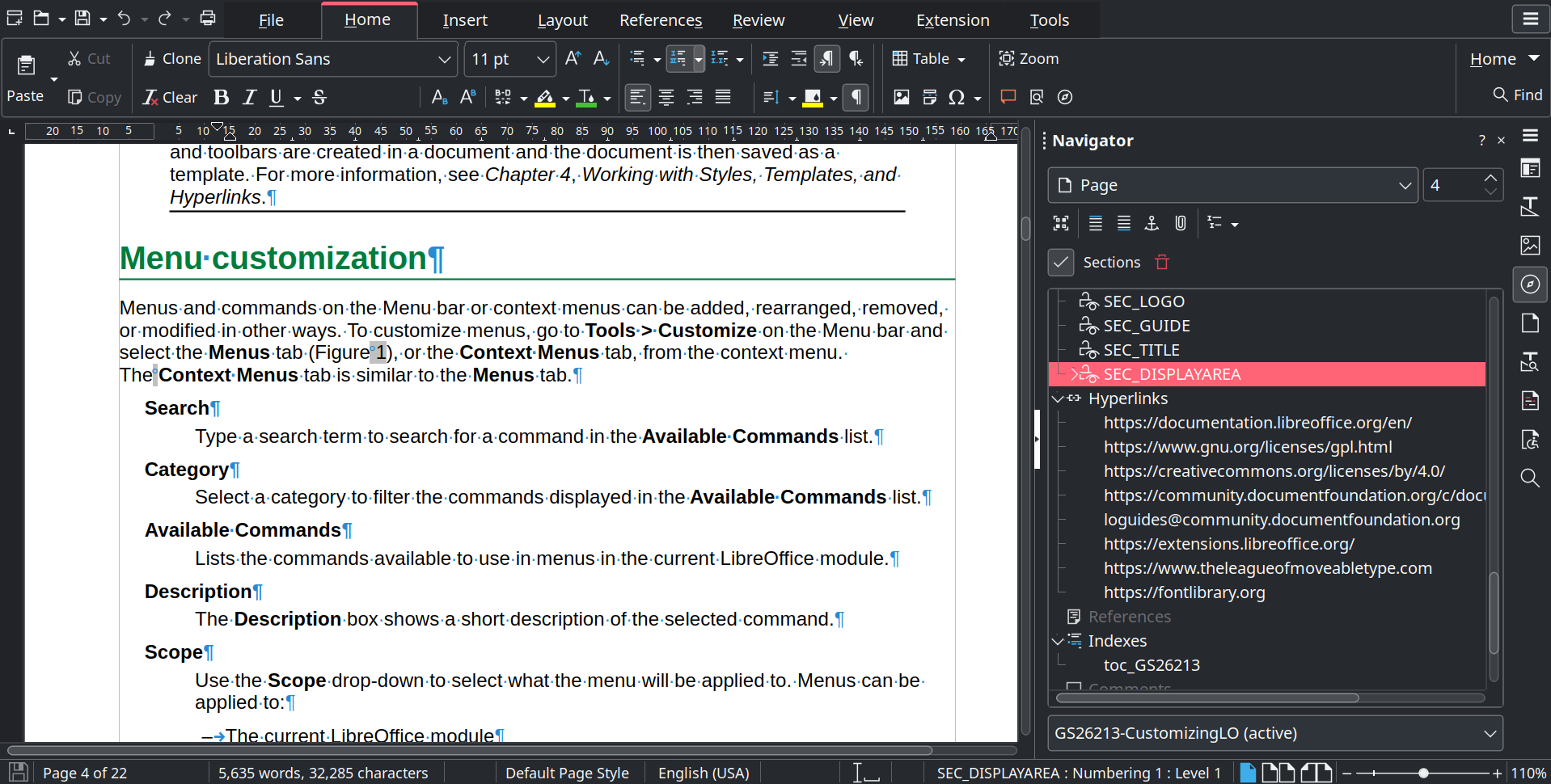
I’m a fan of the Tabbed View user interface. That’s probably in part because I originally trained on Microsoft Word, but I also just find it easier than searching through menus or wrangling multiple toolbars. My one adjustment is that I disabled the Styles preview on the Home tab. I prefer to use either the Styles deck or keyboard shortcuts for formatting, so I find having the styles on the notebook bar unnecessary.
My current setup looks like this:
Thanks to Dione Maddern for this excellent interview about LibreOffice! Download the latest version from the LibreOffice website. If you want to volunteer, click the Join our community button on the LibreOffice website, or join the Documentation Forums.

Technically We Write is a community of technical writers, technical editors, copyeditors, web content writers, and all other roles in technical communication. We'd love to share your story! Contact our editors to share your article idea.