 5 text editors built for tech writers
There’s no shortage of great text editors for technical writers
For most technical writers, a word processor that imposes a style on otherwise plain text is an liability. When you’re a tech writer, you’re likely composing documentation that needs to be delivered in multiple modalities, such as an EPUB or PDF manual, and a webpage on a computer and on a mobile and any other device that connects to the Internet, application pop-ups or support screens, and maybe more. The last thing you want is to structure your writing just for one delivery target, so instead you write plain text and then use a publication tool to transform your writing into HTML, XML, Postscript, and whatever other format your pipeline requires. A good plain text editor enables you to separate content from style, and there are a lot of text editors out there to choose from. Here are 5 you should try.
Just use an IDE
If you’re writing technical documentation for an in-house project, then you might find that every developer on the team has already standardised on a tool with an in-built text editor. Not all development teams have a standard development environment, but many teams mandate a specific integrated development environment (IDE) as a way to minimise variables in the pipeline. If the team around you is using Eclipse, or IntelliJ Idea, or Netbeans, then you could just use the same application for writing.
Most IDEs are extensible, and there are often an AsciiDoc, Markdown, HTML, and XML plugins if those formats aren’t already supported natively. You can install a plugin for the format you’re using, and then work in the same project directory as the rest of the team.
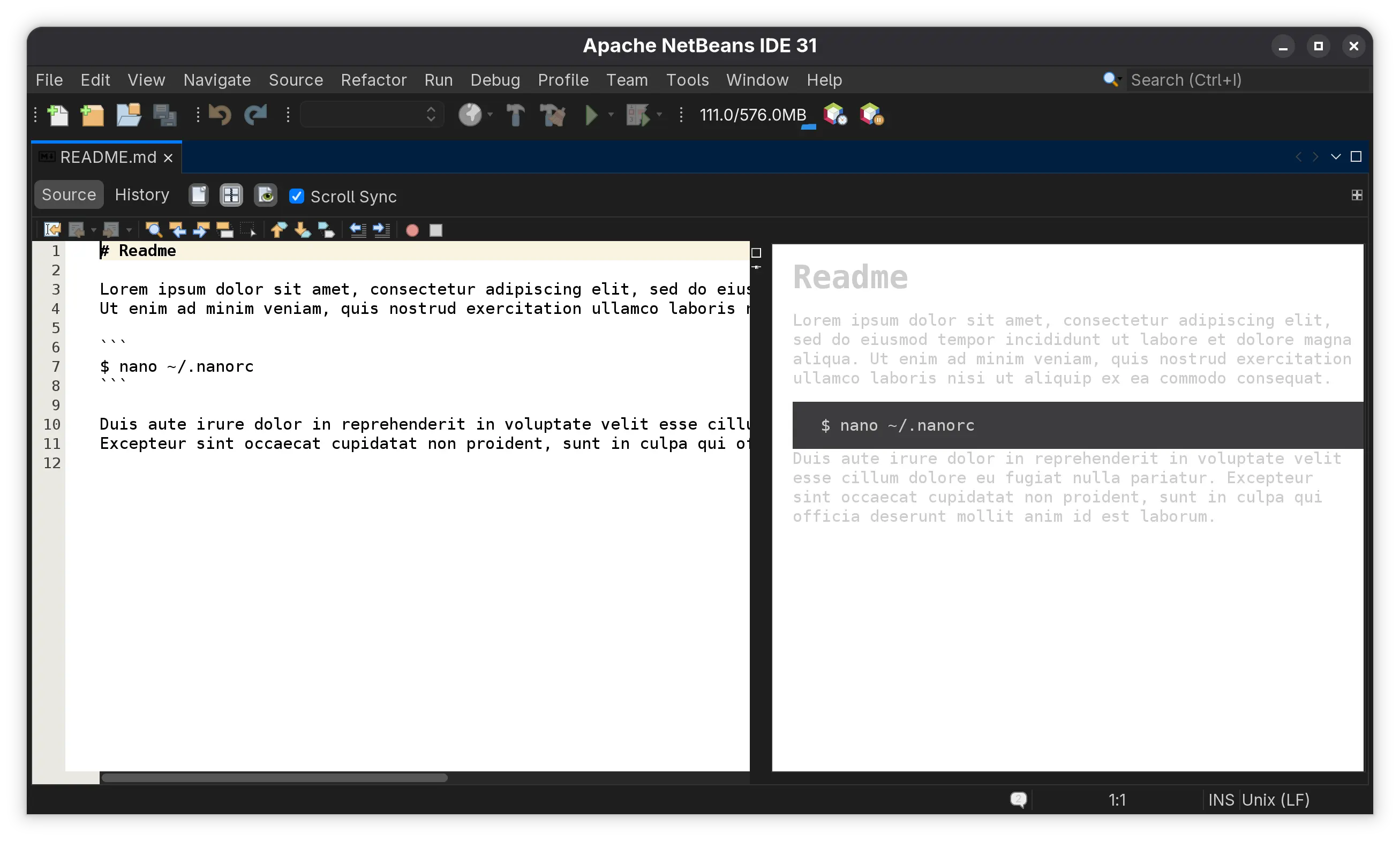
There are several advantages to writing documentation in the same environment as your team. When you share a common workflow as everyone else, you can expect all existing documentation about that workflow to apply to you as equally as it applies to everyone else. While you’re learning to navigate the project’s development repository, you learn the same steps as the rest of the team. Additionally, if you’re writing about code that’s in active development, your documentation is necessarily in lockstep with the code changes. When a minor release happens or the project manager announces a new Git tag to push to, you experience the changes along with everyone else. It’s also easy to browse and test code when you’re working in the code repository.
Pulsar
Pulsar is a fork of GitHub’s open source Atom editor. When Microsoft bought GitHub, the Atom editor was forsaken in favour of Microsoft’s own, and uncannily similar, VS Code. Luckily Atom was open source, so its users rebranded the editor and continued its development and mission of being a hackable hacker’s editor.
Pulsar is a text editor balanced between a development environment and a word processor. By default, it supports major documentation formats, such as Markdown, HTML, XML, and there are plenty of plugins to provide extra features as well as support for more formats. Git integration is built-in, so Pulsar is immediately aware of your working repository when you open a file in a valid Git project directory. If you’re using GitHub, then Pulsar has special integrations for that specifically, too.
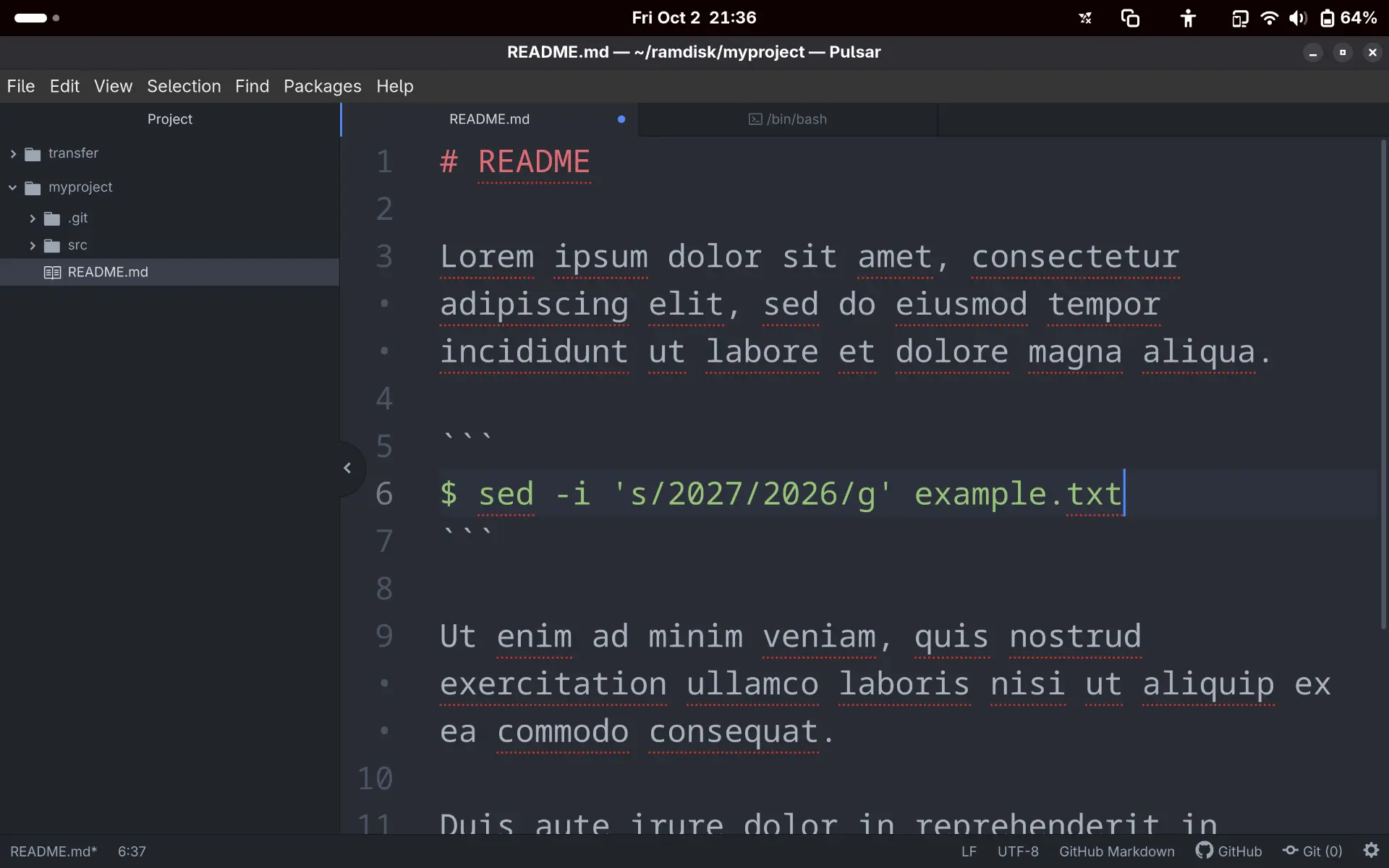
Pulsar is intended as a hacker’s text editor, and so it has a lot of support for programming languages and code project directories. It’s not a complete IDE, although you might classify it as a lightweight one. Using plugins, you can make Pulsar aware of programming languages installed locally. For example, you can lint and run Python files from within Pulsar, just as you would with an IDE. You can open a terminal in Pulsar, compile code (provided you have the compiler on your system), view debug output from code, and much more.
You might not find a plugin for everything you could ever want in Pulsar, but for most typical tech writer workflows it’s got all the usual features you’d expect. You can use external tools for anything it lacks. Pulsar’s community is small compared to large projects with major corporate support, but it’s a community that’s kept with the editor they’ve helped build, and the dedication shows.
VS Code and VSCodium
VS Code is the text editor that Microsoft promoted after discontinuing support for GitHub’s Atom editor. VS Code, like Atom (now Pulsar), has features similar to an IDE, and allows you to add features with plug-ins. Thanks to the support of Microsoft and its global user base, VS Code has a very healthy plug-in ecosystem. There are plug-ins to ensure your VS Code instance supports whatever format you work with, whether it’s code or documentation. As with Pulsar, having tools for both code and documentation frameworks in the same software means you can switch between testing code documenting code without switching between applications.
Additionally, VS Code has an online version hosted by Microsoft, so you can use VS Code on devices that don’t have VS Code installed. You can use the online version to open local files, or you can edit documents kept in cloud storage, including a GitHub repository.
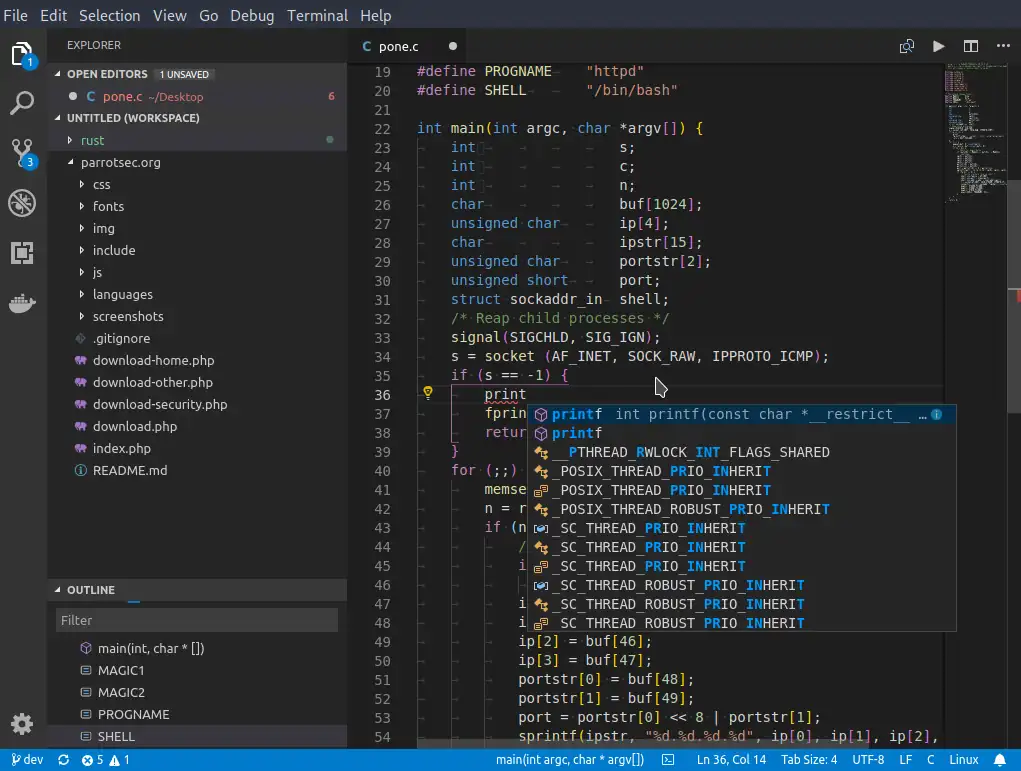
VS Codium is the community version of VS Code with the same functionality but without the Microsoft branding and telemetry. It’s not sponsored by Microsoft, so there’s no online version of it (unless you run it on a cloud yourself), but there’s nothing stopping you from using VS Code online when you require it, and VS Codium on your local machine when you don’t.
GNU Emacs
Sometime in the 1970s, developers started scripting common tasks that they found themselves doing in their rudimentary text editors. They called these scripted tasks “editor macros”, or “emacs” for short. Later, when the GNU organisation began working on its collection of Free Software, one of the earliest applications was a text editor known as GNU Emacs.
After almost 5 decades, GNU Emacs is still actively developed, used for coding and documentation and, believe it or not, as a music player, PDF viewer, and even as a desktop environment. Emacs is built to be modded. It’s literally a LISP interpreter, and the text editor functions are more or less plug-ins, so text editing is just the start of what it can do. Like all the other text editors on this list, Emacs can integrate with Git and nearly every other version control system, it can launch debuggers, trigger compilers, assist with syntax highlighting and linting, browse files in a variety of file managers, track time and appointments and tasks with the Org Mode calendaring plug-in, organise and listen to music files, or play Minesweep or Tetris. If you enjoy hacking on code, you can learn LISP and programme your own plug-in.
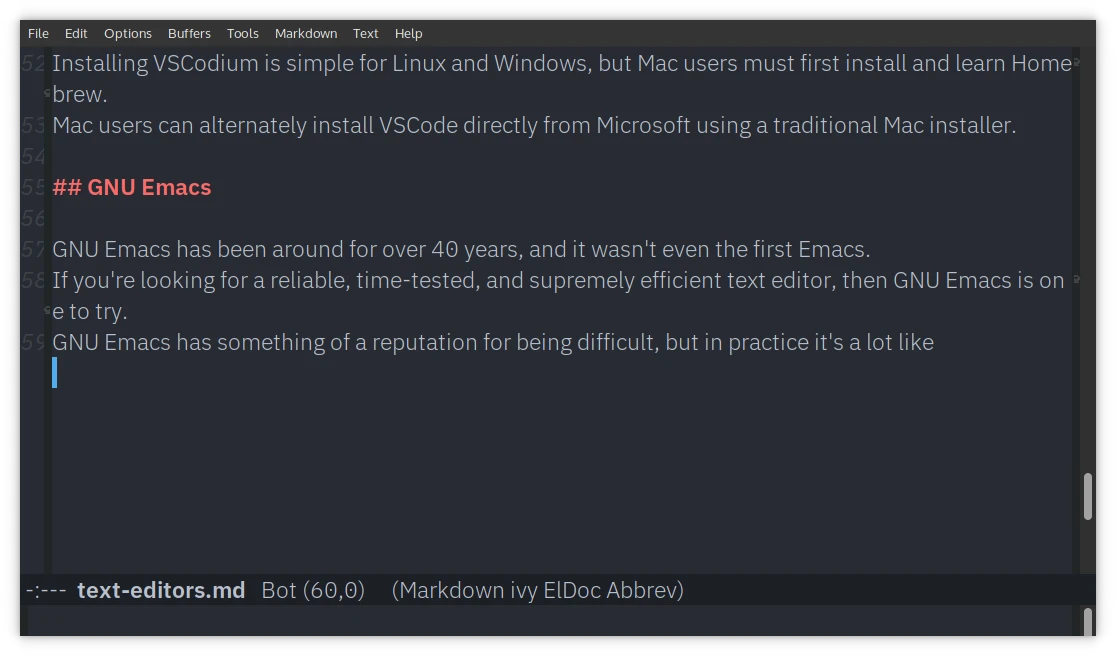
Better yet, you can run Emacs on a “headless” system (a system without a screen), either by opening a remote shell or using the tramp protocol.
GNU Nano
GNU Nano is unique to the other editors on this list, because it has no GUI interface. Nano runs entirely in a terminal, making it lightweight (its installer is about 3 MB on Linux). For a minimal editor, it features a wide range of configuration options and, by default, displays relevant options onscreen so new users can navigate its interface at a glance.
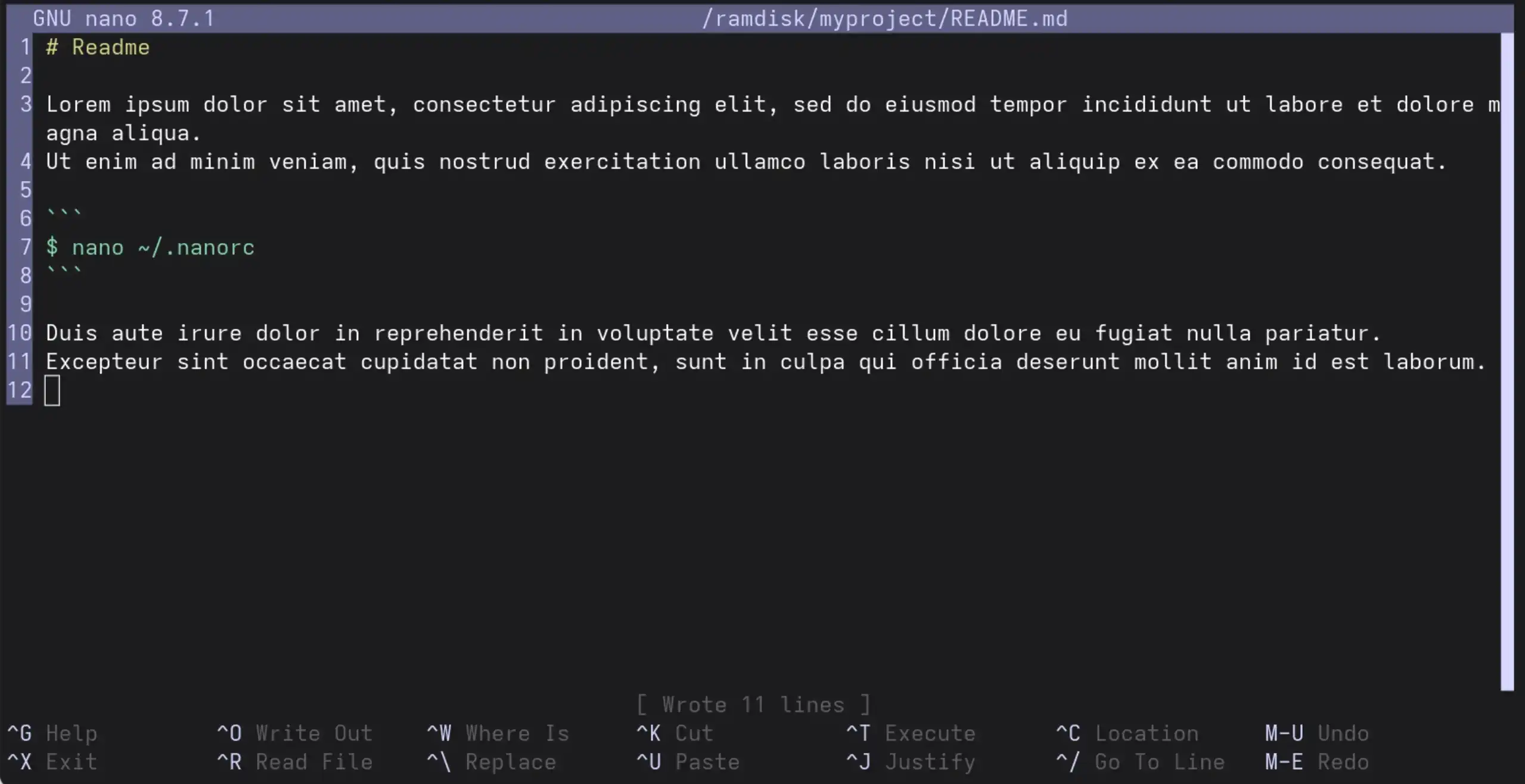
Nano is a basic editor, but it’s got enough convenience functions for technical writing and programming, including syntax highlighting for over 40 formats, theming support, customisable key bindings, adjustable tab size, and more. It doesn’t pretend to be an IDE, but it’s a flexible text editor and it’s included by default on every Linux and MacOS system.
Use the editor that works for you
There’s no shortage of text editors for technical writers, so the challenge isn’t finding a good one, it’s finding the one that works best for you. Sometimes that means adapting to what a larger team uses. Sometimes you might find that customising your editor beyond recognition makes sense. And other times, just learning a basic editor gives you the greatest flexibility. Try a few editors, find your preference, and then focus on your writing.

Seth Kenlon is a Unix and Linux geek, open source enthusiast, and tabletop gamer. Between gigs in the film industry and the tech industry (not necessarily exclusive of one another) he likes to design games and hack on Java or Lua code (also not necessarily exclusive of one another).