 Formatting a book in LaTeX
How to format professional book content using LaTeX
I'm currently thinking about a new book project, which I might start over the summer. The project is a personal one: reformatting a friend's unpublished book so it can be self-published in a limited run, probably using Lulu so other alumni can order print copies.
I've formatted this kind of book project before. For example, we've used LibreOffice master documents to collect articles from Technically We Write or Coaching Buttons into free community books. And last year, I used GNU groff to reformat a copy of my wife's master's thesis into a book. But for this new book project, I'm thinking about using LaTeX.
About the project
My undergraduate degree was physics, from the University of Wisconsin River Falls. During my time there, one of my professors decided there wasn't a good textbook about data analysis that fit the needs of our lab-focused physics program, so he decided to write his own book. He wasn't able to convince a publisher to take on the project, but our university library distributed copies to students, printed on Letter-sized pages and bound into a rather simple cardboard cover.
His data analysis book was a popular resource with physics students in my program, with excellent descriptions about how and why to apply certain analysis, derivations of equations to show the theory, and sample programs to demonstrate the methods. Over the years, he taught a data analysis course using the book, adding exercises for students to practice the methods. He continued to update the book until his eventual retirement, although it was only ever "self published" (albeit in an unprofessional way) via the library.
Dr John P.G. Shepherd passed away last year, and the family and physics department hosted a memorial that was open to the alumni. Many of us, including myself, connected over his data analysis book. I learned that he eventually distributed free PDF copies to students, and the data analysis book continued to be popular with lab students after his retirement.
A few of us asked what would become of the book. The book had been written using a now-defunct word processor that was only ever available for older Mac computers, and the file format was impenetrable—or at least, converting the book into an open format at the file level was likely impossible using existing tools. One alum had already started a project to extract the raw text from the PDF copy of the book and format it into LaTeX, but I understand he's been unable to commit the time to finish the project.
I thought I might restart the effort on my own. The book uses chapters, headings, paragraphs, inline and block equations, and many charts inserted as images. While I could format this using GNU groff, I agree the math-heavy nature of the book makes the project better suited to LaTeX.
Books in LaTeX
It's easy to format books using LaTeX, and there's a special
book document class to do it. And using the
pdftotext command, it's possible to extract the text from
the PDF into a plain text file, which is a great start to reformat the
book using LaTeX.
Books use the book document class. That's it; that's the
secret to making a book in LaTeX. Everything after that is sections,
subsections, and paragraphs. To start a new chapter, use the
\chapter command. Chapters can also have major sections
with \section and subsections with
\subsection. Paragraphs are just lines of text, with
paragraphs separated with a blank line.
Books should also include author information, which you can define
with the \title, \author, and
\date commands. Then at the start of your book, you can
insert the title page with the \maketitle command. If you
want to provide a table of contents, also add the
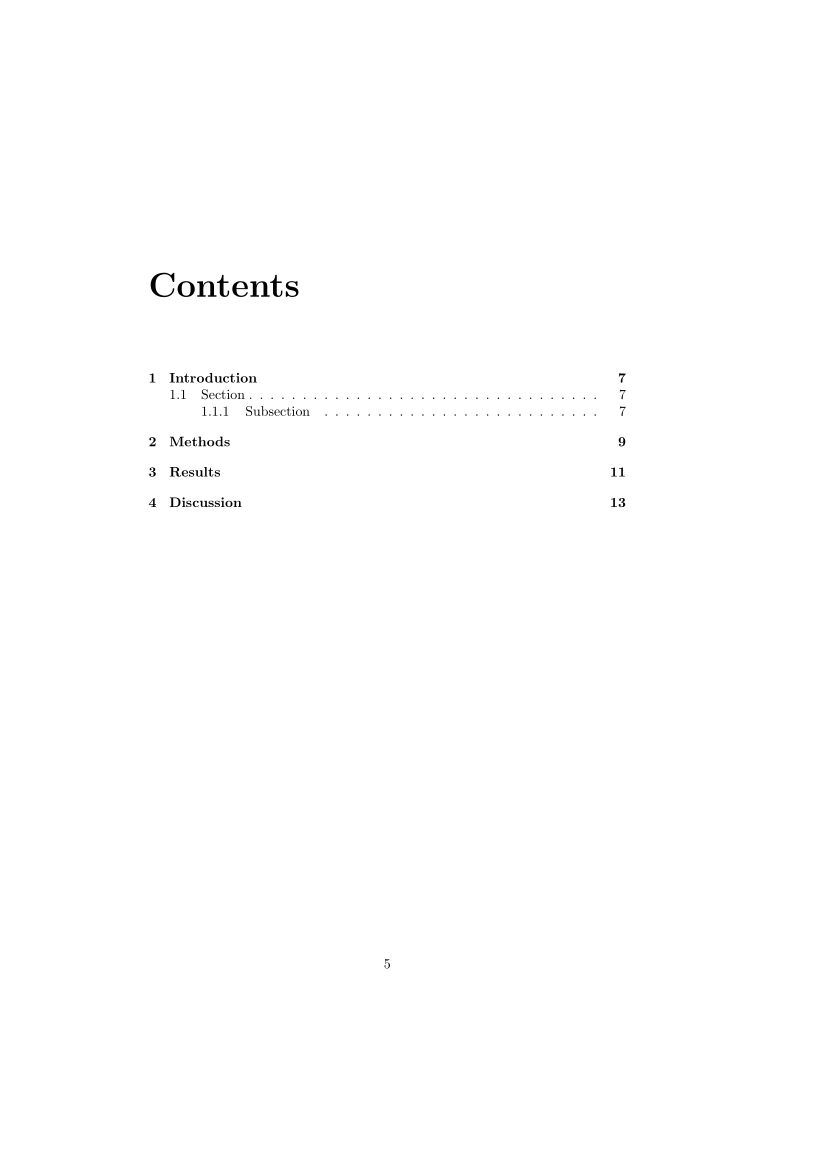
\tableofcontents command.
Here's a demonstration of a book written in LaTeX, using some
placeholder text. I've also added a copyright page by typing a paragraph
after the \maketitle command, so it gets inserted on the
next page after the title page. After that, I inserted a new page with
the \newpage command, then added a "dedication" page. These
are just samples for other content that might be included in a longer
book:
\documentclass{book}

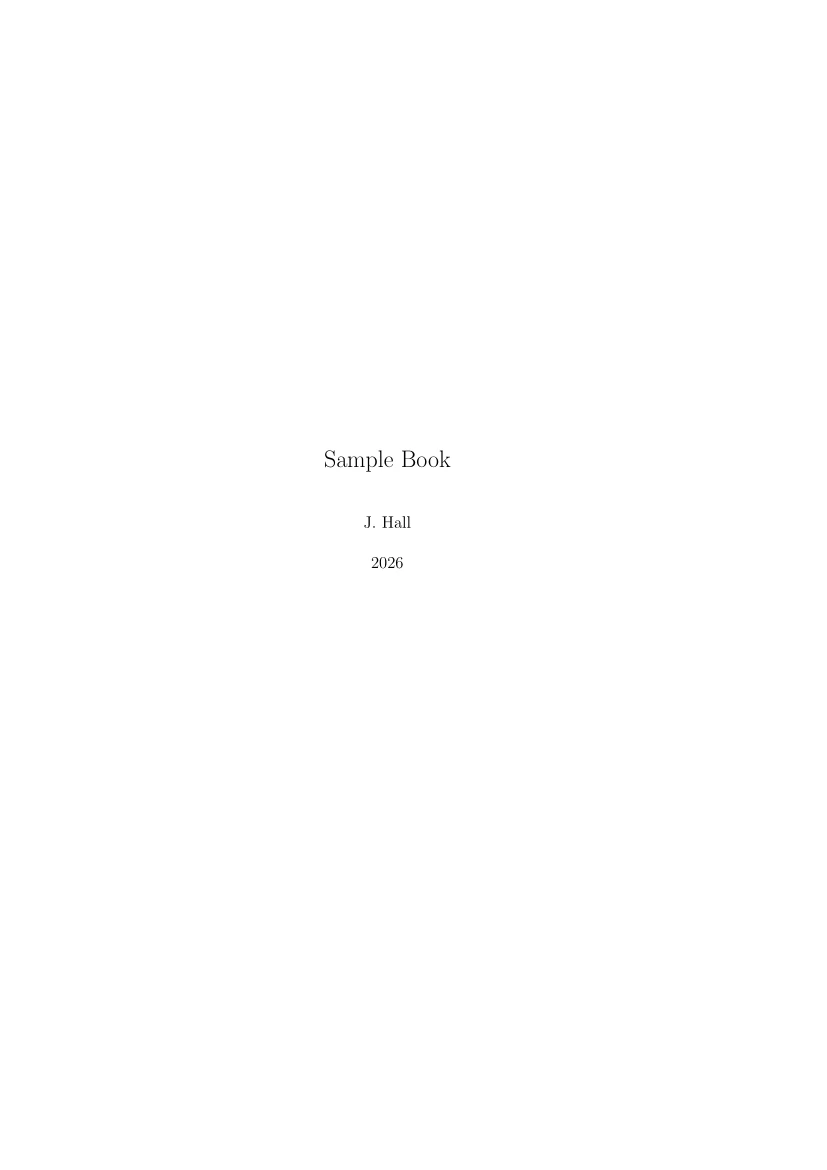
\title{Sample Book}
\author{J. Hall}
\date{2026}

\begin{document}

\maketitle

Copyright page

\newpage
Dedication page

\tableofcontents

%% the margins won't look right when using the defaults because
%% the book class reserves some outside margin space to add
%% margin notes

\chapter{Introduction}

This is the first chapter in the book.
Lorem ipsum dolor sit amet, consectetur adipiscing elit, sed do
eiusmod tempor incididunt ut labore et dolore magna aliqua.

\section{Section}

This is a section in a chapter.
Duis aute irure dolor in reprehenderit in voluptate velit esse
cillum dolore eu fugiat nulla pariatur.

\subsection{Subsection}

This is a subsection within a section.
Excepteur sint occaecat cupidatat non proident, sunt in culpa qui
officia deserunt mollit anim id est laborum.

\chapter{Methods}

Add more text here.
Ut enim ad minim veniam, quis nostrud exercitation ullamco laboris
nisi ut aliquip ex ea commodo consequat.

\chapter{Results}

Add text here

\chapter{Discussion}

Add text here

\end{document}
Save this as book.tex and process it with the
pdflatex command to generate a PDF document as the output.
However, the table of contents will not be generated on the first "pass"
with LaTeX; the first time you process the document, LaTeX generates
chapter-and-page information in a separate file called
book.toc, and you need to run pdflatex a
second time to fill in the table of contents.
Since this takes two "passes" to generate a book with a table of
contents, I prefer to run the plain latex command the first
time, and the pdflatex command the second time to actually
create the PDF:
$ latex book
$ pdflatex book
Each command generates a lot of output, which I've omitted here. The
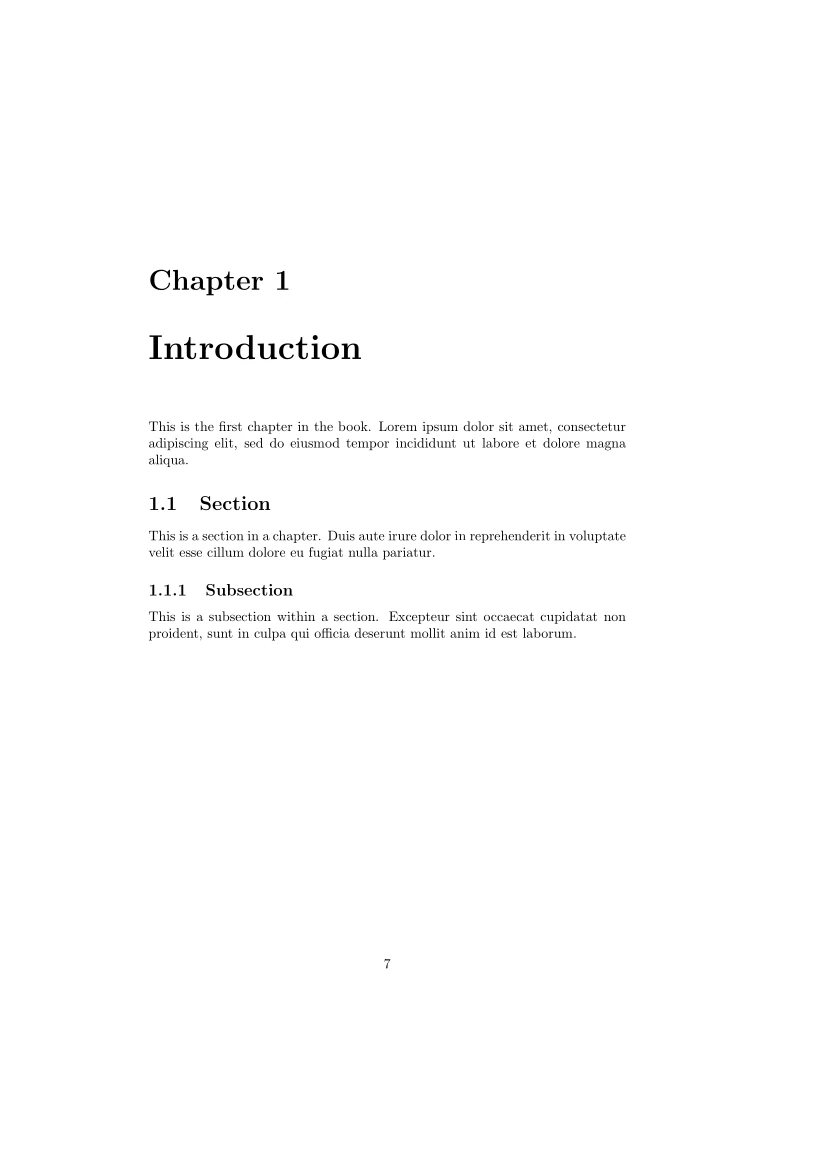
output looks very nice, including inserting blank pages so that chapters
always start on a right-hand page. However, you might notice the output
has somewhat wide outside margins. This is not an error; the
book document class adds extra space in the outside margins
so you can insert margin notes.
Here's the cover page, table of contents, and "chapter 1," which are all right-hand pages:
Equations in LaTeX
LaTeX makes it easy to include all kinds of mathematics and equations
in documents. LaTeX uses the equation environment to insert
numbered equations, and displaymath environment for
unnumbered equations. Because these are quite common in scientific
documents, LaTeX can also use \[ and \] or a
pair of $$ as an alias for displayed math. Both are
formatted as block displays. For inline math, enclose the statements in
a pair of single $.
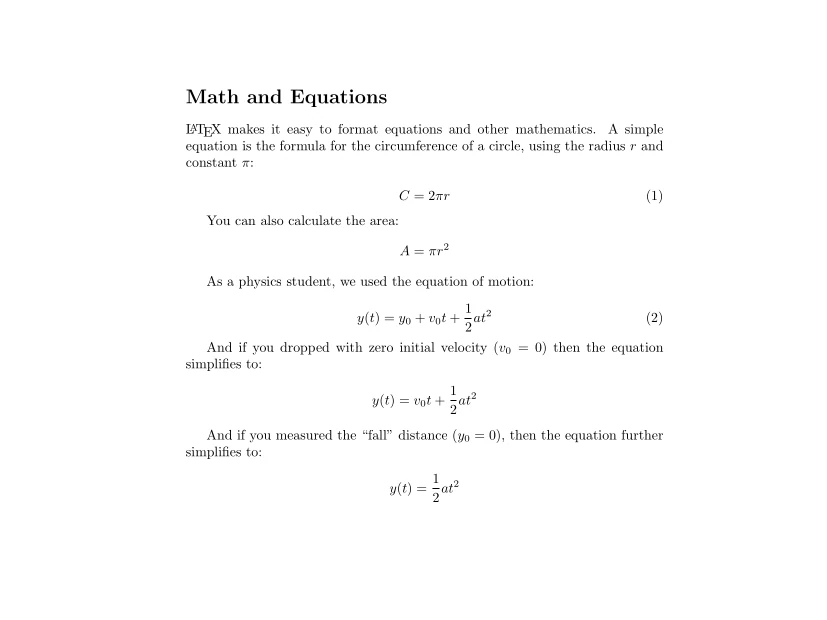
Here's an example LaTeX document that shows how to use each of these environments to format block and inline math. At the same time, this sample demonstrates some of the more advanced math formatting that is possible with LaTeX:
\documentclass{article}
\begin{document}

\section*{Math and Equations}

\LaTeX\ makes it easy to format equations and other mathematics.
A simple equation is the formula for the circumference of a
circle, using the radius $r$ and constant $\pi$:

%% this produces a numbered equation:
\begin{equation}
C = 2 \pi r
\end{equation}

You can also calculate the area:

%% this produces an unnumbered equation:
\begin{displaymath}
A = \pi r^2
\end{displaymath}

As a physics student, we used the equation of motion:

\begin{equation}
y(t) = y_0 + v_0 t + \frac{1}{2} a t^2
\end{equation}

And if you dropped with zero initial velocity ($v_0 = 0$) then the
equation simplifies to:

%% this is an alias to `displaymath':
\[
y(t) = v_0 t + \frac{1}{2} a t^2
\]

And if you measured the ``fall'' distance ($y_0 = 0$), then the
equation further simplifies to:

%% this is another way to add an unnumbered equation:
$$ y(t) = \frac{1}{2} a t^2 $$

\end{document}
Save this as math.tex and process it with the
pdflatex command to generate a PDF document. If you don't
provide the .tex extension, LaTeX will assume this by
default:
$ pdflatex mathThis produces very professional-looking equations. Here's the output document, which I've cropped to show the detail:
Images in LaTeX
The data analysis book includes many charts and diagrams that were
inserted as images. While we don't have access to the original images in
a native format, it is possible to use the pdfimages
command line tool to extract images from a PDF document into one of
several supported formats. I've run a few tests with the book, and I can
easily extract them into PNG format, which can be reinserted into a
LaTeX document.
To insert block or display images in LaTeX, start by including the
graphicx package. The original LaTeX book described the
graphics package, but over time the LaTeX developers
improved this functionality, such as to support resizing the image, and
the modern package is called graphicx.
Use the \includegraphics command to insert an image.
This will always be an inline element, displayed at its native
size, so you should be careful about placement. You can change the size
by using width= as an option to the command, like
\includegraphics[width=1in]{kitten.jpg} to insert a photo
that is 1 inch wide. If you want to show the image as a display
element, you may want to put it in a center block.
Here's a sample file that includes a photo of a kitten in several
places within a document. In this case, the kitten.jpg
photo is in the same directory as the LaTeX file, which I've called
images.tex. If you have a lot of images, you might instead
organize them into directories. You should use the full path in the
\includegraphics command:
\documentclass{article}
\usepackage{graphicx}

\begin{document}

\section*{Images}

If you need to insert an image, make sure to include the
\verb+graphicx+ package, then use the \verb+\includegraphics+
command. You can include several kinds of images, including
\textsc{eps}, \textsc{png}, \textsc{jpg}, and \textsc{pdf} files.

Images are always ``inline'' elements unless you put them in a
``block.'' Note that images are inserted in native size by
default, but you can change that with \verb+width=+ as an option:
\includegraphics[width=1in]{kitten.jpg}

Here's an image that's inserted on its own paragraph:

\includegraphics[width=2in]{kitten.jpg}

If you want to insert an image as a ``display'' element, you may
prefer to include it in a \verb+center+ block:

\begin{center}
\includegraphics[width=2in]{kitten.jpg}
\end{center}

\end{document}
Process the document with the pdflatex command to
generate a PDF file:
$ pdflatex images.tex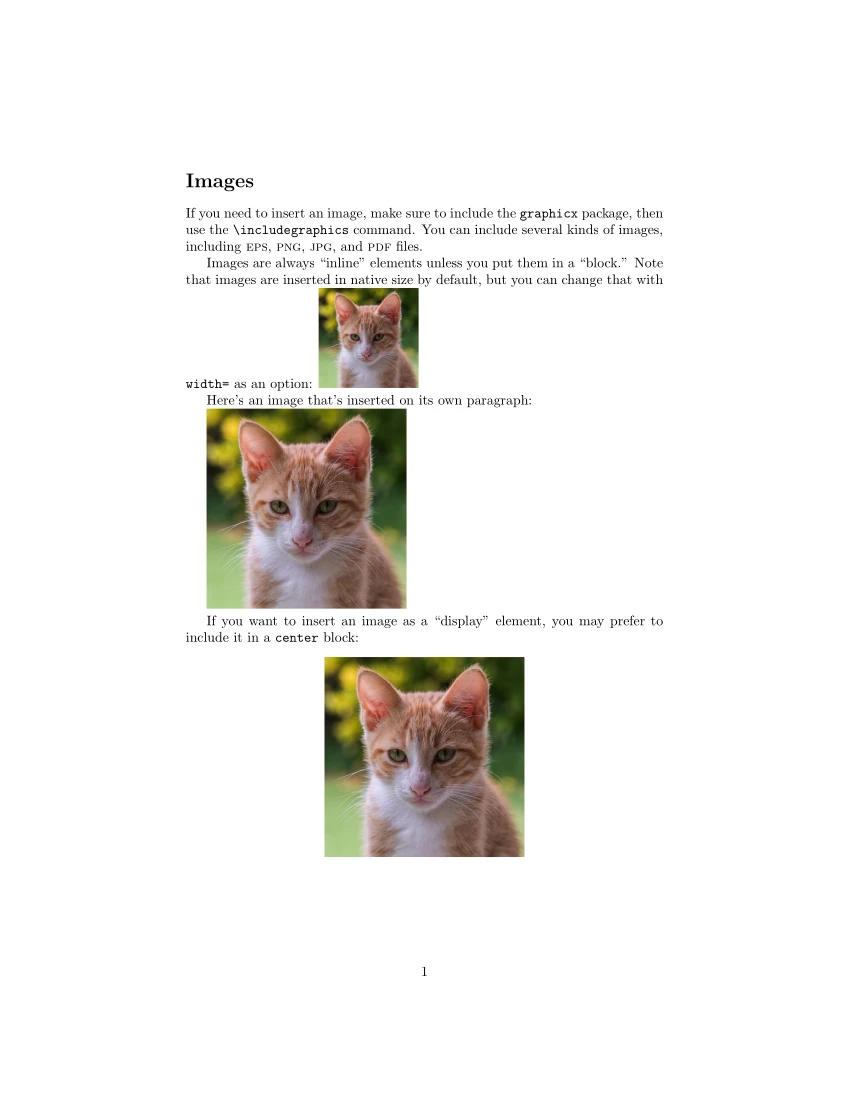
Working on the book
While I used LaTeX quite a lot during my undergraduate days, and created some content with LaTeX over the years, it's been a while since I've worked on any large project in LaTeX. I'm excited to work on this book project. I think it will be an interesting project to attempt, and I know I will learn a lot about LaTeX in the process. Above all, this will be an excellent demonstration of how technical writers can use LaTeX to write scientific and engineering documents of all kinds, including books.

Jim Hall is an open source software developer and technical writer, including projects such as open source usability and the FreeDOS Project. At work, Jim is CEO of Hallmentum, an IT executive consulting company. | Check out Jim's new book From Markup to Markdown (available now) about important milestones in writing with computers, including nroff, LaTeX, HTML, and DITA.