 Formal book interiors with LibreOffice
Follow these steps to format your next professional book with LibreOffice Writer
Technical writers need to create all kinds of professional book interiors. One common example is a training workbook, which uses a simple book interior: page numbers are 1, 2, 3 and the front matter is included in the page count, although typically without page numbers. That is, the cover page is actually “page 1,” but only body text pages show page numbers.
But if you look closely at any professionally-produced book, you’ll find more formal internal formatting:
- The cover page, copyright page, and table of contents do not have page numbers
- The preface, foreword, and other front matter have page numbers like i, ii, iii
- Body text page numbers are 1, 2, 3
- Chapters in the front matter and body text always start on the right
Overview
LibreOffice Writer can produce this formatting, mostly by leveraging styles, with a few manual page breaks to reset page numbers. I use these steps to format a formal book interior:
- Create new page styles for front matter: Front Left and Front Right
- Create a new heading style for front matter headings: Front Heading 1
- Modify Heading 1 to insert a page break before it
- Modify Subtitle to insert a page break after it
- Add the table of contents
- Insert manual page breaks to restart page numbering: i, ii, iii and 1, 2, 3
- Add page headers and footers
- Apply other special formatting
- Export the book as a PDF file
Set up the front matter
Create new page styles for front matter called Front Left and Front Right. Set the “Next page style” for Front Left pages to be Front Right, and set the “Next page style” for Front Right pages to Front Left.
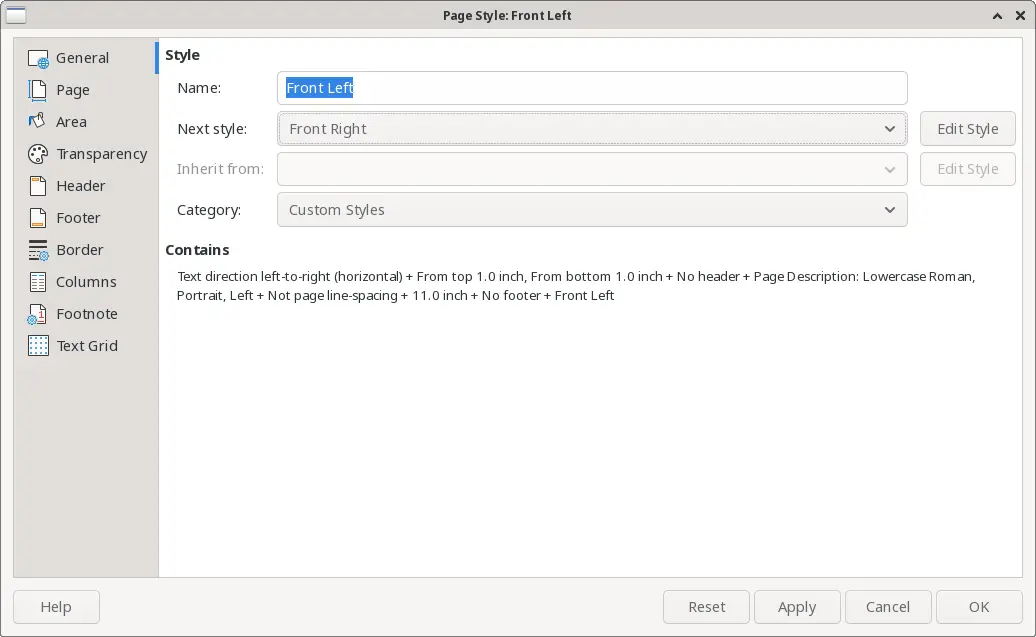
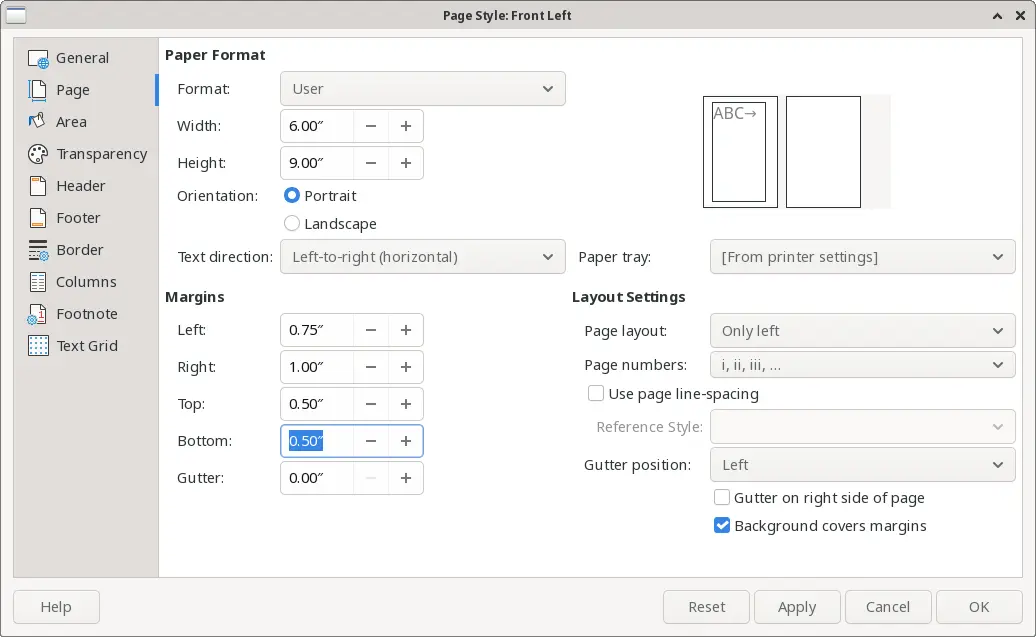
Front Left pages should use “Only left” page layout, and Front Right pages should use “Only right.” Both should use i, ii, iii page numbers.
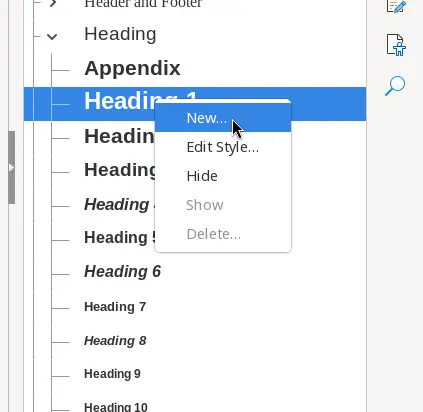
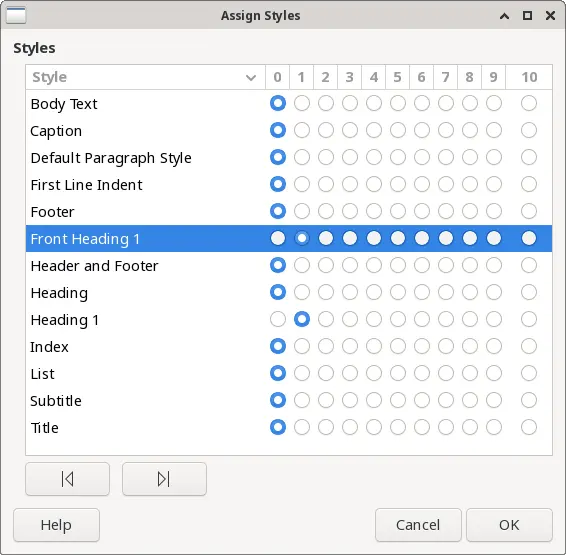
Create a new style for front matter headings called Front Heading 1, which inherits from Heading 1.
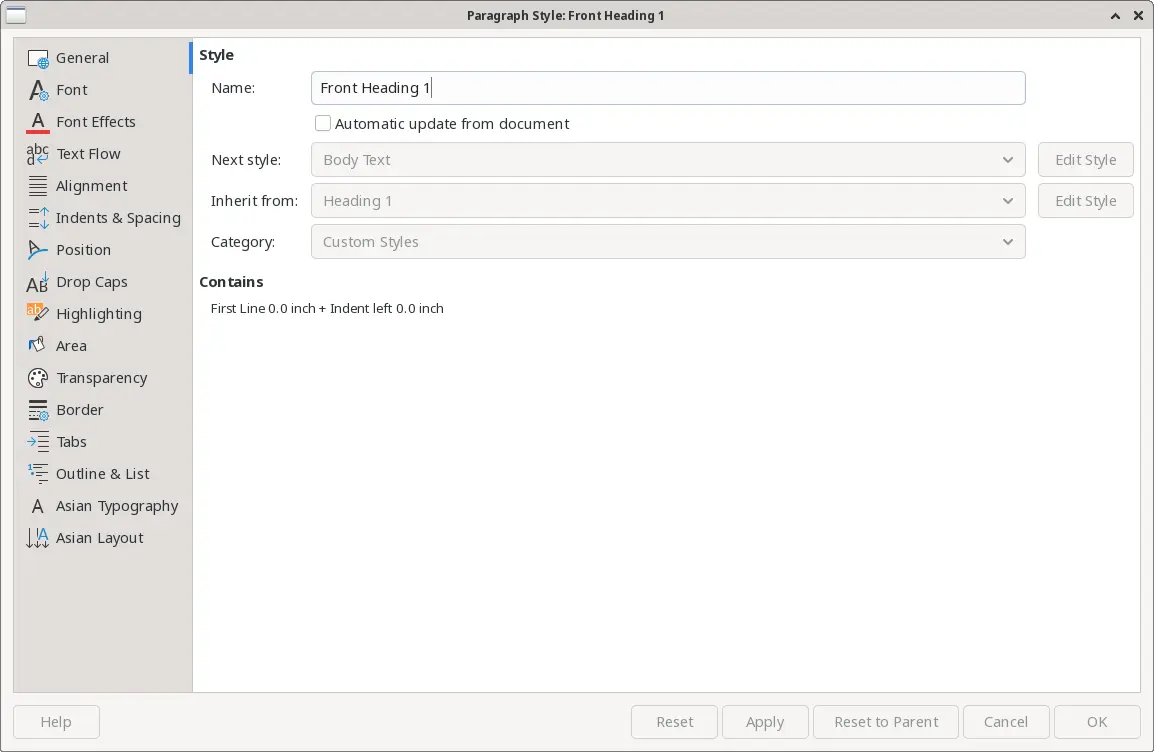
Under the “Text Flow” tab, insert a page break before it, with Front Right page style.
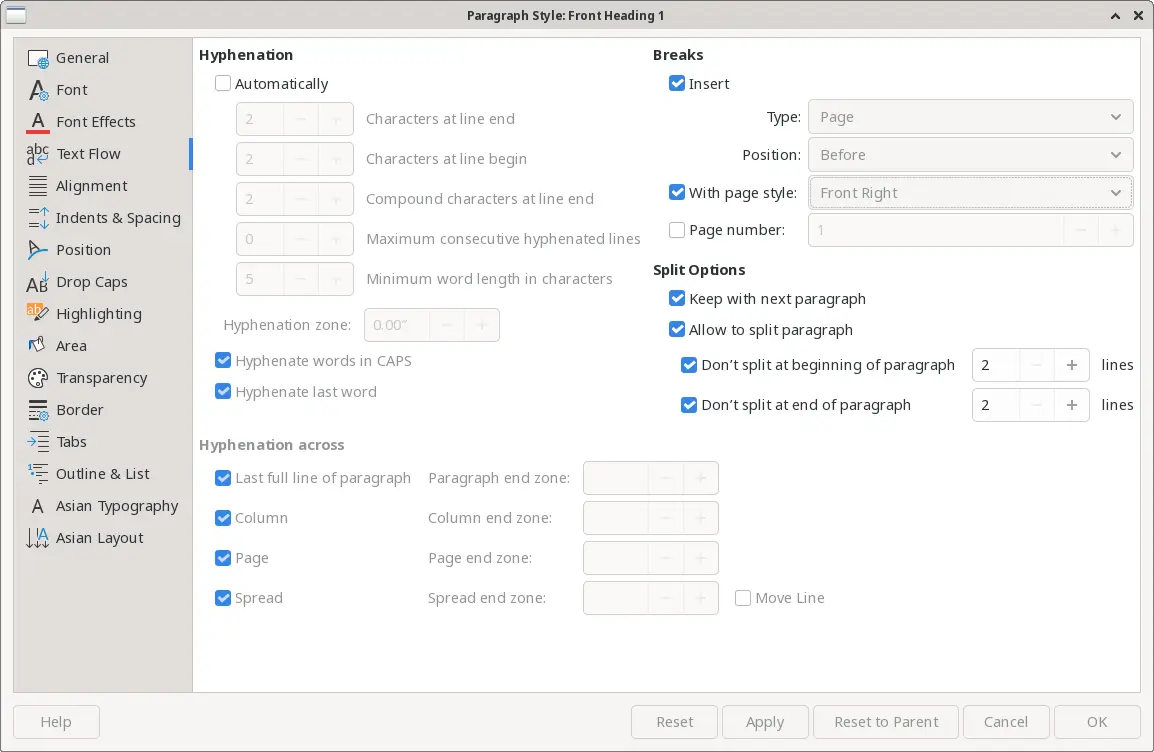
Use Front Heading 1 for all front matter headings, such as “Preface” or “Foreword.”
Start new pages automatically
Modify the Heading 1 style to insert a page break before it, with Right Page style. LibreOffice already provides Right Page and Left Page styles.
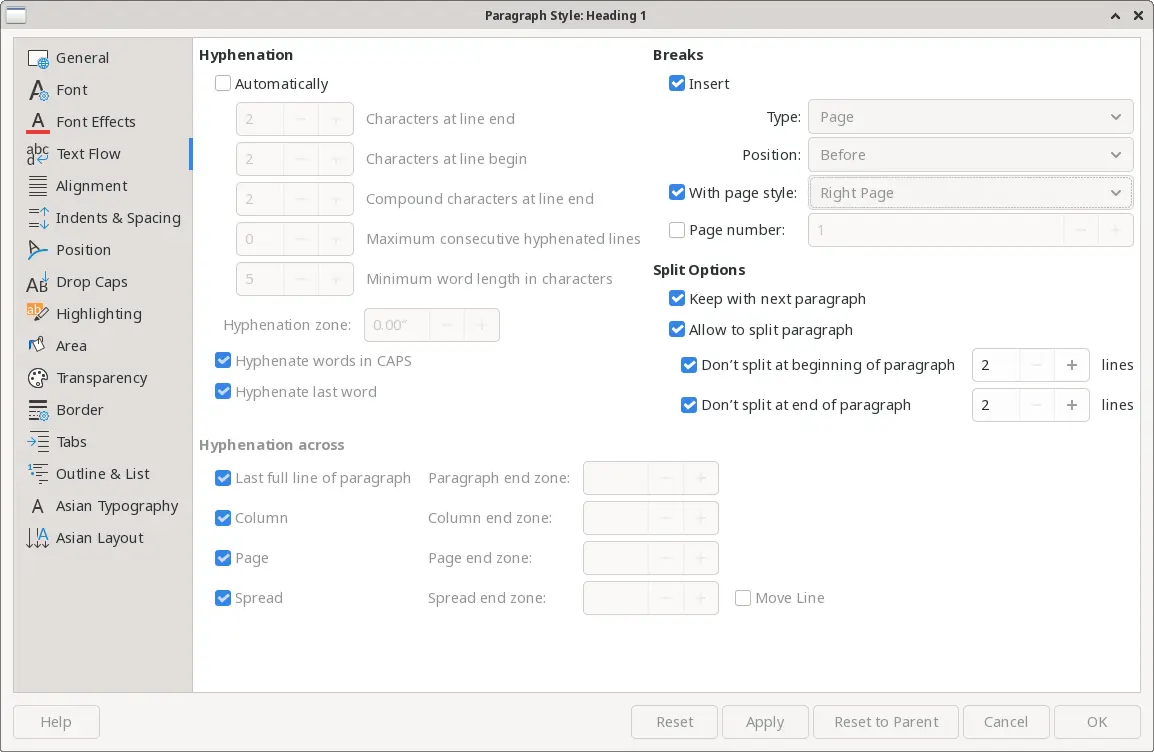
Modify the Subtitle style to insert a page break after it, without a specific style. This starts the copyright page on a new page.
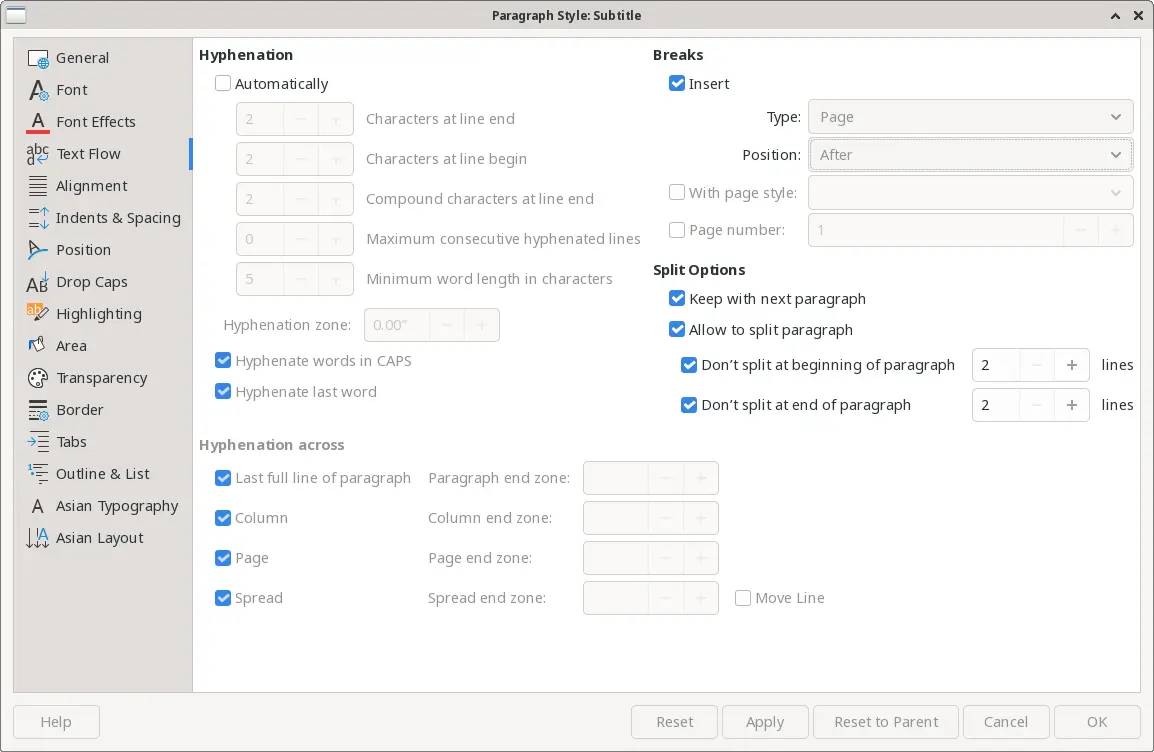
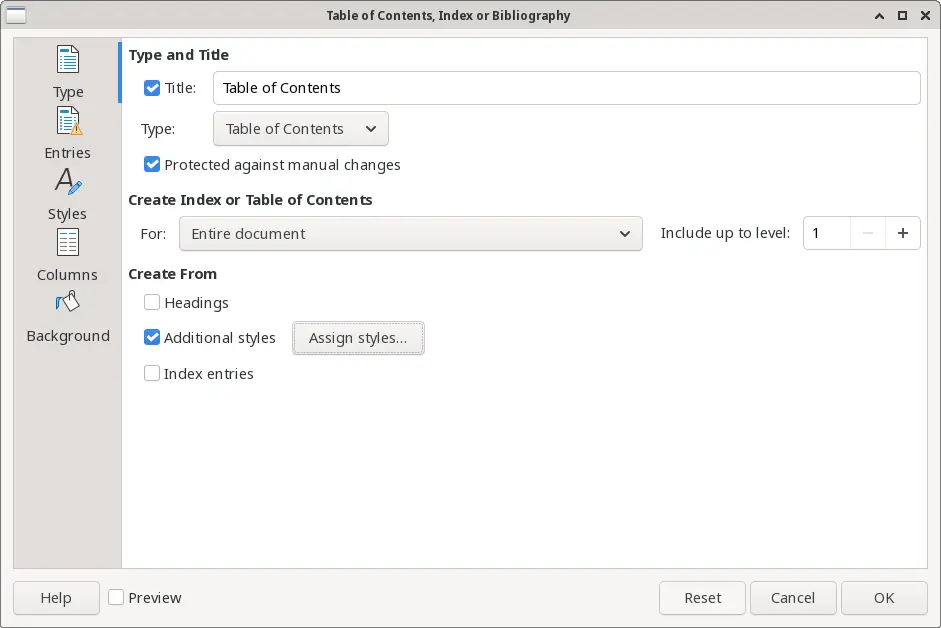
Table of contents
Add the table of contents. Let LibreOffice build it automatically, using styles: Front Heading 1 and Heading 1 as both “first-level” headings.
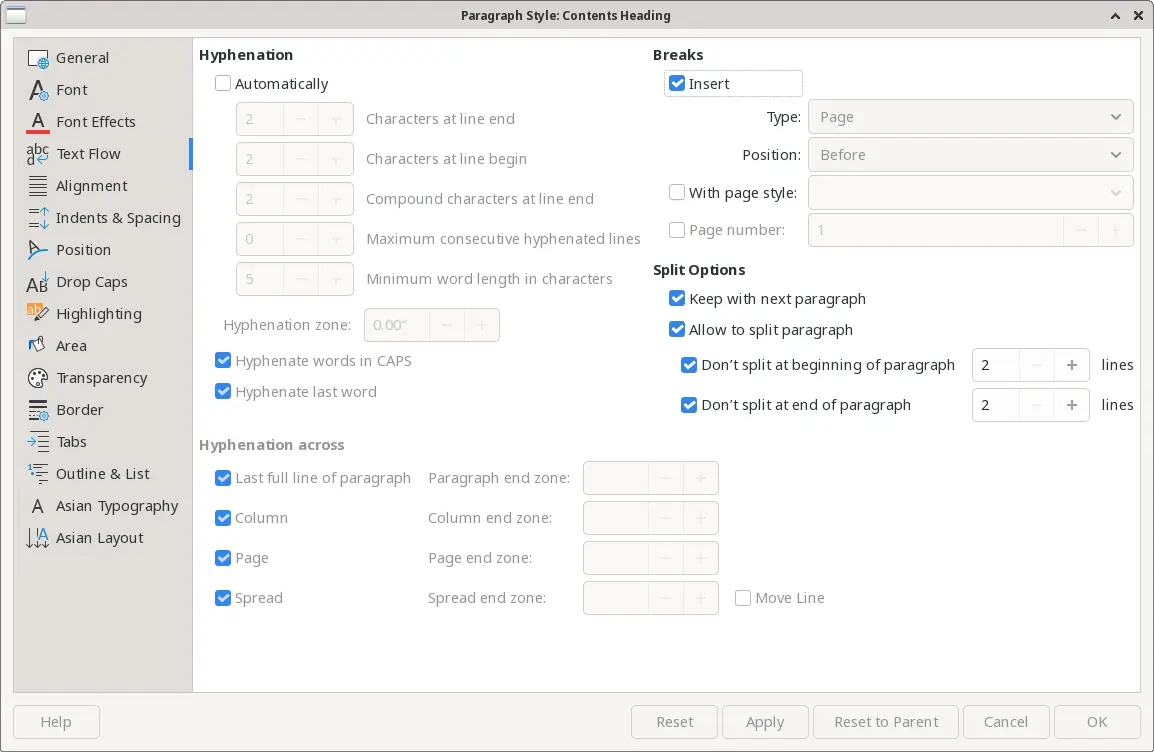
Modify the Contents Heading style to insert a page break before it, without a specific style. By default, this will use whatever page style is currently in use, which is Default Page Style at this point.
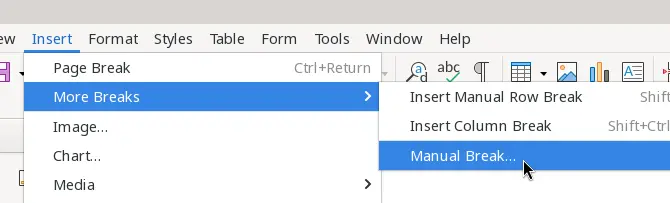
Add manual page breaks where needed
Insert manual page breaks after the table of contents and before the other front matter, and after the front matter and before the first chapter.
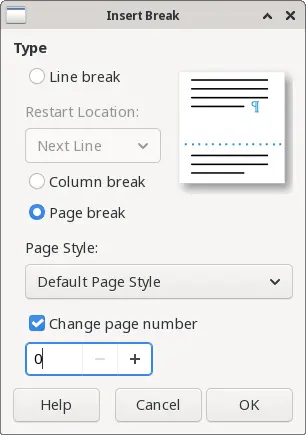
Make the new page Default Page Style, and set the initial page number to 0 or whatever the next page will be. For example, if you add a page break on a right page, set the new page number to 0 so the next right-hand page will be “page 1.”
Add your own formatting
Add page headers and footers to Right Page, Left Page, Front Right, and Front Left pages. Insert a field for the page number. Add whatever text you prefer for the header; I usually insert the book’s title on left pages and the section title (“Heading > Heading contents”) on right pages.
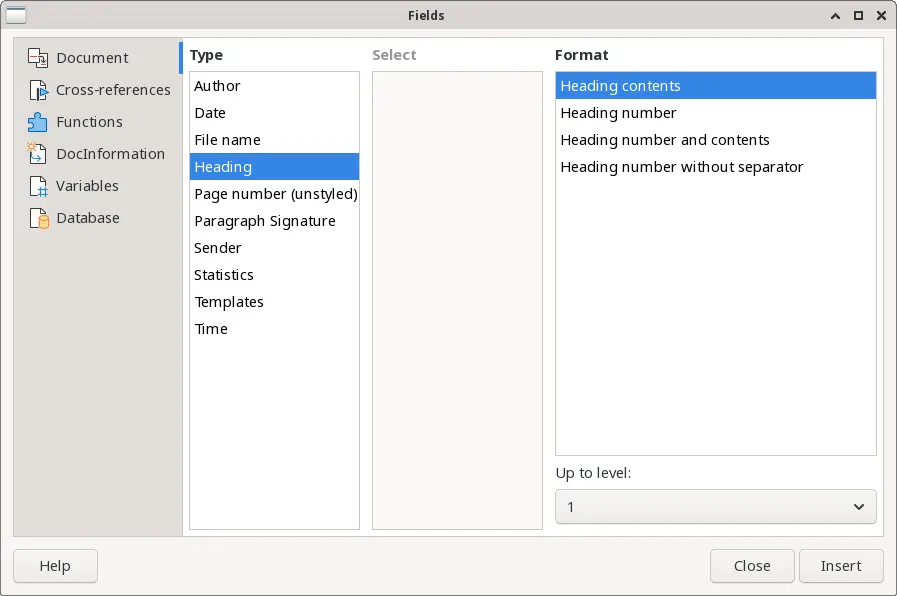
Apply other special formatting. For example, my formal book interiors usually apply hyphenation to the body text, and justify the text. I also prefer to center the page header and footer, and add a border to separate them from the main text. For certain books, I might also add extra space above a chapter title, to help the new chapter stand apart from the rest of the book interior.
Export the finished book
Export the book as a PDF file. Don’t forget to refresh the table of contents first, and to include any automatically-inserted blank pages.
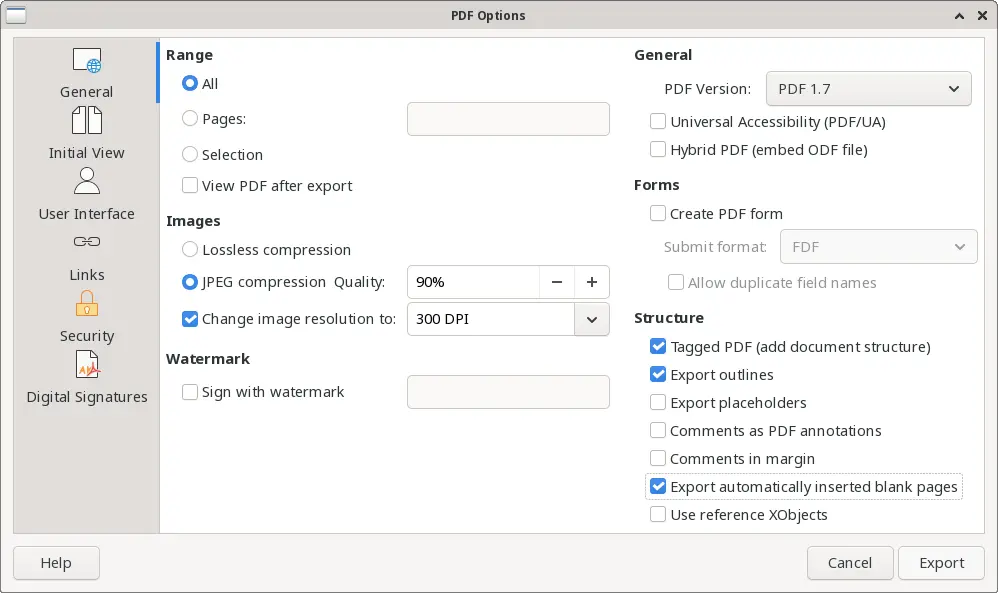
Creating a formal book interior requires a few extra steps, but the final product looks much more professional. If you'd like to see an example, you can download a sample formal book interior in LibreOffice format, and as a PDF:

Jim Hall is an open source software developer and technical writer, including projects such as open source usability and the FreeDOS Project. At work, Jim is CEO of Hallmentum, an IT executive consulting company. | Check out Jim's new book From Markup to Markdown (available now) about important milestones in writing with computers, including nroff, LaTeX, HTML, and DITA.